Invite a customer to the portal
Give a customer self-service access — tracking, documents, quotes, and booking requests — from their account page.
The customer portal lets your customers track their shipments, download documents, view invoices, request quotes, and submit booking requests — without emailing you for every update. Access is granted per account, from the account's own page.
Before you start
- The customer must exist under Accounts (type Customer).
- You need the contact's email address.
Steps
- Open Accounts in the sidebar and select the customer account.
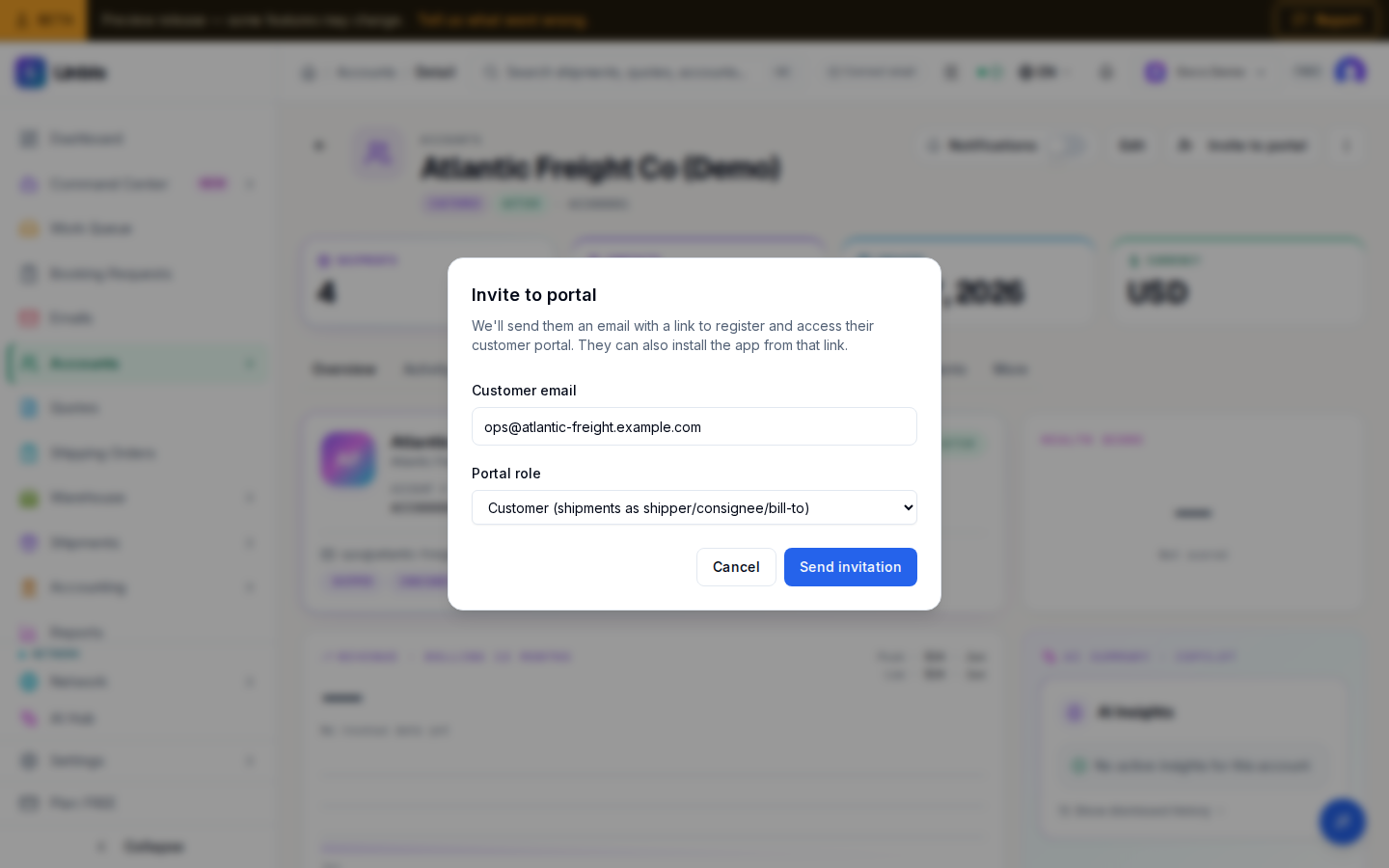
- In the account header, select Invite to portal.
- Fill in the dialog:
- Customer email — where the invitation is sent.
- Portal role — what the portal shows them: Customer (shipments as shipper/consignee/bill-to), Shipper, Consignee, Notify party, or Agent.
- Select Send invitation.
Result
The contact receives an email with a link to register and access their customer portal (they can also install the app from that link). The account header now shows the pending invitation; once accepted, it switches to an active-portal badge with the user's email. If the email already belonged to a user, access is granted immediately — no email round-trip.
In the portal, the customer can track shipments, view and download documents, see invoices,
approve pre-approvals, schedule deliveries, request quotes, and request shipments. Invited
customers' booking requests arrive in /booking-requests for review/conversion — open
Booking Requests in the sidebar, pick the request's type (Direct, House, or Master), and
select Convert to turn it into a shipment, or Decline with a reason. No file number is
consumed until you convert.
Conversations and requests from the portal
Once the customer is in, the portal is also where they talk to you and ask for things:
- Notes on their records. The customer can write on any of their shipments, bookings and quotes. A conversation opens on its newest note, and Messages and the portal's bell show how many notes they have not read yet.
- Your replies. A note you write on a record starts as Internal and goes back to Internal after every send. Choose Shared for a note the customer should read; when the customer wrote last, the conversation offers Reply as Shared.
- Who hears about it. When a customer writes, the bell tells the record's assignee — else the person who created it, its sales rep or the account's owner, else your company's owners and admins.
- Portal requests. A quote, booking or shipment the customer requests shows From portal · needs review and the customer's name. Turn on the From portal filter on the list to see only those; the bell tells the person responsible for each new request.
- What the customer sees. Quote and invoice details, each with a PDF download. A quote you have not sent yet shows as In review, with no price. When they request a quote or a shipment, they pick ports from the list, or choose My port isn’t listed and type it.
Tips
- Revoke access anytime from the same header control ("Revocar acceso" on an active binding, or revoke a pending invitation before it is accepted).
- Portal quote requests land in your Quotes queue, ready to price and send back.