AP Payments
The vendor payments list and the Record bill payment form — record money paid out, from a bill or from this list, and allocate it across open bills.
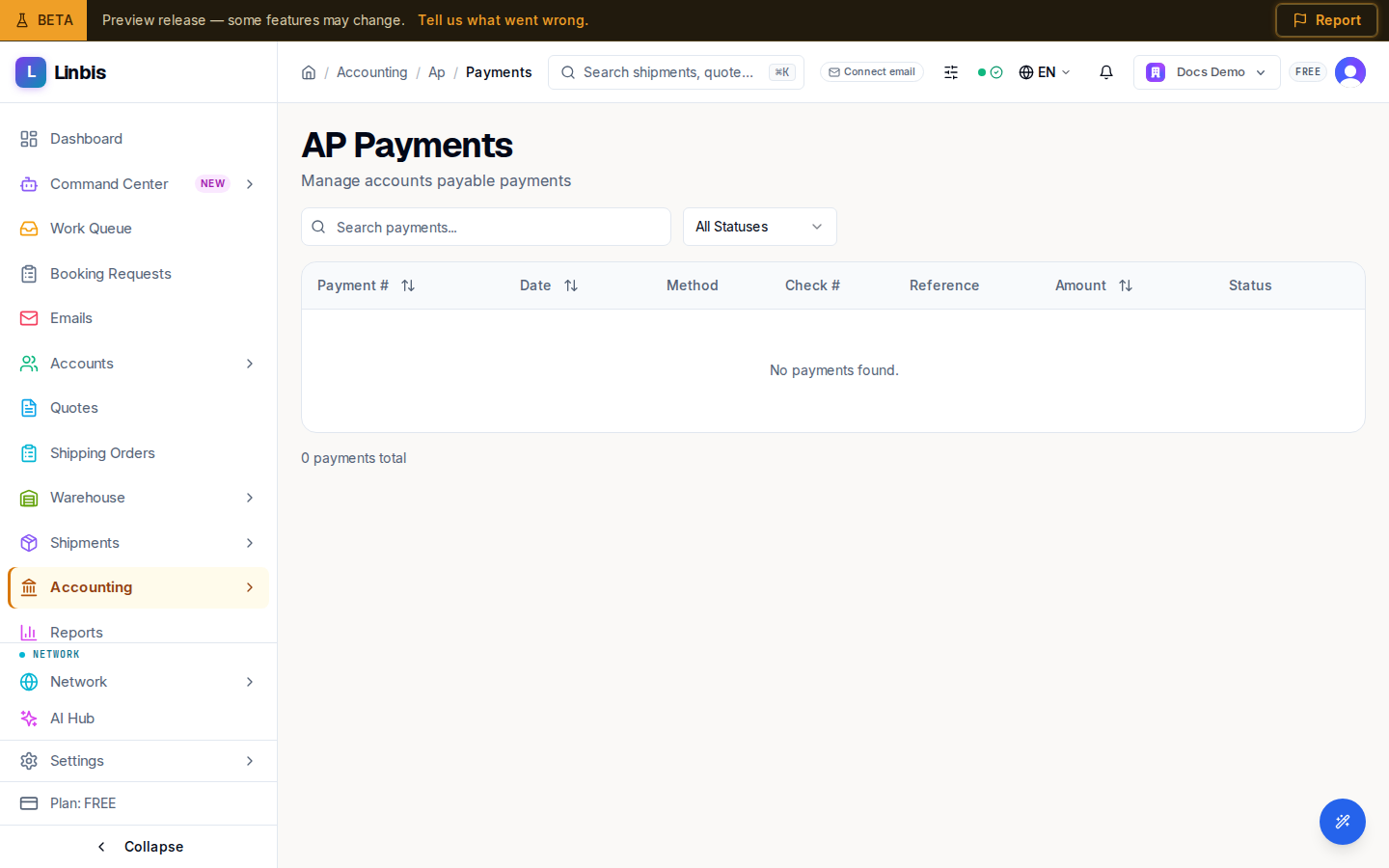
Accounting → Payables → AP Payments lists every payment made to vendors ("Manage accounts payable payments") — the money-out mirror of AR Payments.
Columns
Payment #, Date, Method, Check #, Reference, Amount, Status. Search with "Search payments..." or filter by status. The Payment # opens the payment.
Statuses
Pending → Approved → Processed → Cleared, plus Returned and Voided. Voided payments are listed only when you filter by Voided.
Recording a bill payment
The header's Record payment opens the Record bill payment form (route
/accounting/ap/payments/pay). A note at the top reminds you that it records a payment you have
already made outside Linbis: it updates your books only and sends no money to the vendor. You can
also start from bills, and the form arrives filled in:
- Record payment on a bill (the bill detail page or the bill's row menu on the Bills list) fills in its vendor, that bill ticked at its open balance, its currency, that amount, and auto-apply off.
- Record payment in the selection bar of the Bills list does the same for several ticked bills of one vendor in one currency, as one payment.
A banner says what was filled in ("Filled in from bill …: … open. If you paid a different amount, change it."), and names any selected bill that was left out because it has nothing left to pay or is in another currency. Then:
- Pick the Vendor if it is not filled in — their open bills load below.
- Fill Payment Date, Payment Method, the check/reference numbers, the Amount, the Bank Account the money leaves from, and an optional memo. When your company keeps its books in Linbis and the payment settles bills, the bank account is required: until you choose one, Save stays off and the form says "Choose the bank account the money went through: your books record the cash of this payment there."
- Allocate in Bill Allocations — auto-apply oldest-first or type each amount yourself.
- When the payment or a bill is in another currency than your company's, read Before you save: what this does in your company's currency. Worked out by the same steps the save uses, it shows the payment in your company's currency (at the rate you typed or the market rate on the payment date) and, for each bill it settles, the rate the bill was booked at, its Booked value, the value Paid for it, and the Exchange difference, with the total gain or loss the save will book and any bill the save would leave out, with the reason. If the save would refuse the payment, the panel says why. A tenant admin also sees what Save will ask them to confirm with a reason: a bank account in another currency than the payment, a typed rate far from the market rate, or amounts for a bill that imply a rate far from the market rate. Nothing is saved until you select Save Payment.
- Check the Payment Summary and Save Payment.
Each allocated bill moves to Partial or, at full balance, Paid. If you started from one bill you go back to that bill; otherwise you land on this list. If the save is refused, the form keeps everything you entered and shows the reason beside Save Payment ("Not saved: … What you entered is kept: correct it and save again."). Without an accounting role (Owner, Admin, Manager, or Finance), Record payment is greyed out with the reason.
Row menu
A payment's row menu lists View Details, which opens the AP payment detail page, and Void, which opens that page with its void dialog showing (not offered on a voided, cleared, or returned payment). Other per-payment actions (apply credit, mark a returned payment) are done from the detail page.
Related
Vendor Credits
Vendor credit memos — credits your vendors owe you; see where each line posts, correct a draft that cannot be posted, and apply them against open bills.
AP payment detail
The vendor-payment detail page — allocations, and the Apply Credit, Mark NSF, and Void actions for handling credits and returned payments.