Setup Wizard
The Accounting Setup Wizard — pick a chart-of-accounts template, preview the accounts, and create them in three steps.
Accounting → Settings → Setup Wizard guides a new company through initial accounting setup — mainly, standing up a chart of accounts from a template. It runs in three steps.
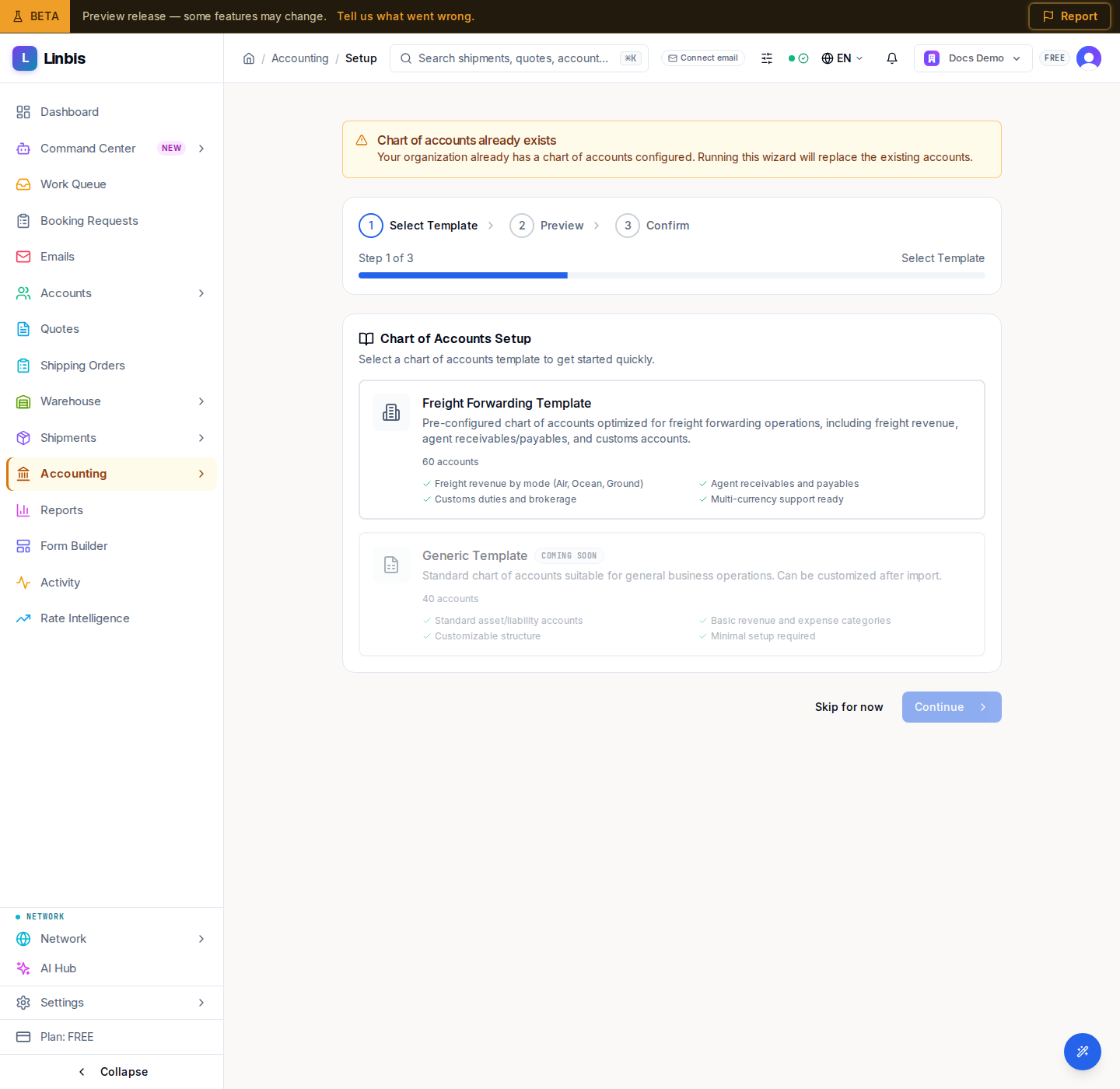
Steps
- Select Template — "Choose a chart of accounts template."
- Preview — "Review the accounts that will be created." A table lists each account's Code, Account Name, and Type.
- Confirm — "Create your chart of accounts." A Summary shows the Selected Template and the number of Accounts to Create.
Replacing an existing chart
If a chart of accounts already exists, the wizard notes it ("Chart of accounts already exists") and offers Replace existing COA. Replacing works only while nothing uses the chart yet: once any journal entry (draft or posted), bank account, tax code, invoice, bill, charge or other record uses one of its accounts, the wizard refuses, names what is in the way, and changes nothing. To change a chart that is in use, edit or deactivate accounts on the Chart of Accounts page.
For tenants on QuickBooks-only accounting (QBO Only), a GL info banner appears at the top of the page.
Related
Integrations
External Integrations — connect bank feeds (Plaid, Belvo), accounting software (QuickBooks, Xero), and exchange-rate providers.
Add duty lines to an invoice
Turn on duty lines in Settings → Accounting, then let Linbis work out customs duty, import tax and US government fees on a new invoice from the HS code, origin and customs value.