Record a payment against an invoice
Receive a customer payment from the invoice or from AR Payments, check what it does in your company's currency, allocate it to open invoices — auto-apply FIFO or line by line — and move them to Partial or Paid.
Posted invoices track their balance until money arrives. Recording that money is the Receive Payment flow: capture the payment, allocate it across the customer's open invoices, and the invoice statuses follow.
Before you start
- The invoice must be posted — status OPEN (or PARTIAL) — a DRAFT invoice can't take a payment.
- Know where the money goes: the Bank Account you deposit into.
- You need an accounting role (Owner, Admin, Manager, or Finance). Without one, Receive payment is shown greyed out with the reason.
From the invoice (quickest)
Open the invoice and select Receive payment (it is also in the invoice's row menu on the Invoices list). The form opens already filled in: the customer, that invoice ticked at its open balance, its currency, that amount, and Auto-apply (FIFO) off. A banner says what was filled in ("Filled in from invoice …: … open. If the customer paid a different amount, change it."). Check the date, method, reference, and bank account, then continue from step 4 below. If the invoice has nothing left to pay by the time the form opens, the banner says so instead.
Steps
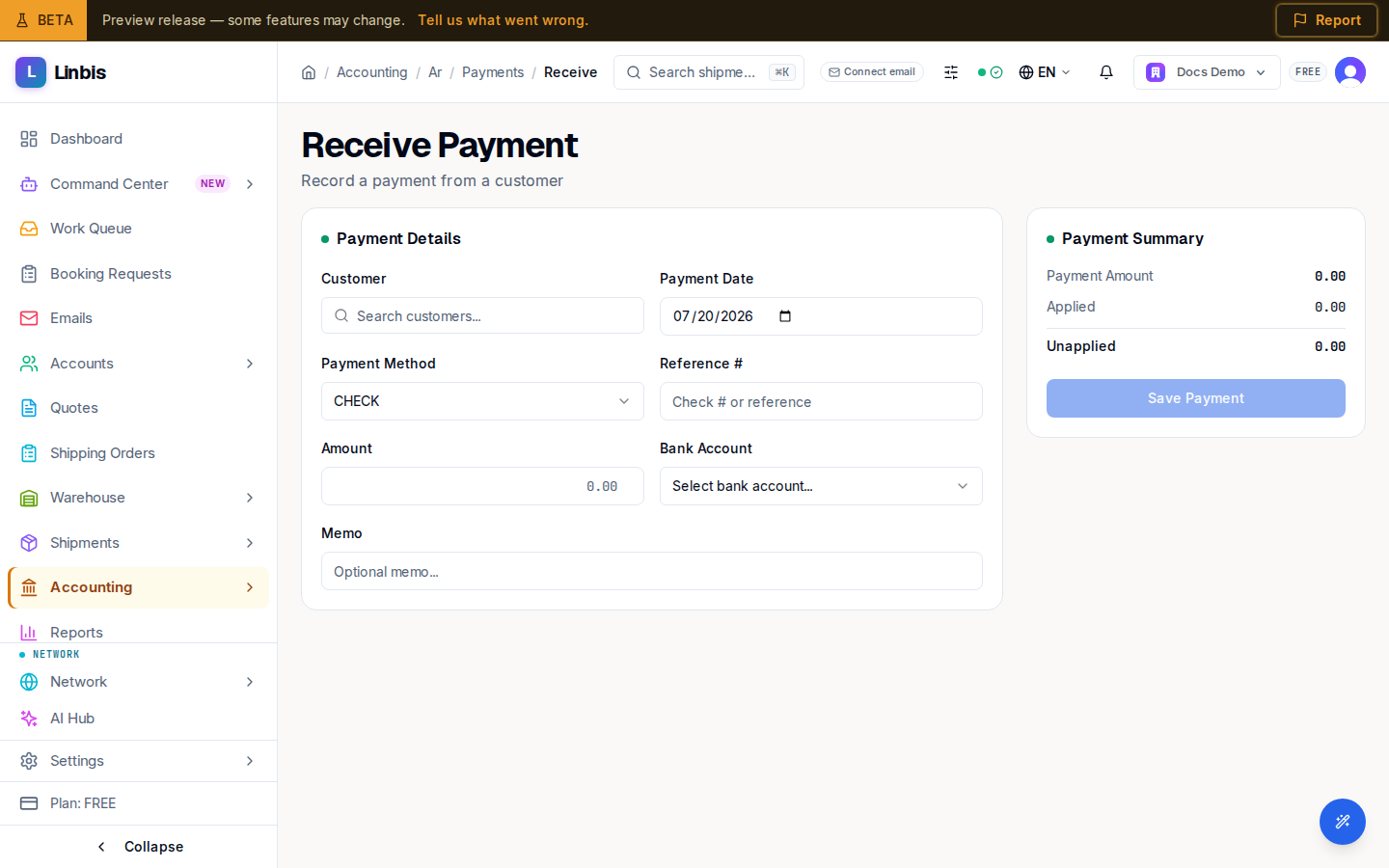
- Open Accounting → Receivables → AR Payments ("Manage accounts receivable payments") and select Receive Payment. (From a customer's account page, the accounting tab's Receive Payment link lands here with the customer pre-selected.) A note at the top of the form reminds you that this records a payment the customer has already made: it updates your books only, it does not charge the customer or move any money.
- Fill Payment Details:
- Customer — picking one loads their open invoices below.
- Payment Date (defaults today) and Payment Method — CHECK, ACH, WIRE, CREDIT CARD, CASH, or OTHER.
- Reference # ("Check # or reference"), the Amount, the Bank Account, and an optional Memo. When your company keeps its books in Linbis and the payment settles invoices, the bank account is required: until you choose one, Save stays off and the form says "Choose the bank account the money went through: your books record the cash of this payment there."
- Allocate in Invoice Allocations: leave Auto-apply (FIFO) ticked to fill oldest invoices first, or untick it and type each Apply Amount yourself (columns: Invoice #, Customer, Balance, Apply Amount — capped at each balance). Partial amounts are fine.
- When the payment or an invoice is in another currency than your company's, read Before you save (see below).
- Watch the Payment Summary — Payment Amount, Applied, Unapplied — then select Save Payment.
- If the payment exceeds what you applied, the Overpayment Detected dialog asks how to handle the excess: Keep as credit on account or Recognize as miscellaneous income (with a Revenue Account). Confirm.
Before you save: what the payment does in your company's currency
When a rate is involved, the form shows Before you save: what this does in your company's currency. Its figures are worked out by the same steps the save uses, and nothing is saved until you select Save Payment:
- the payment in your company's currency, at the rate you typed or at the market rate on the payment date;
- for each invoice it settles: the part settled, the rate the invoice was booked at, its Booked value, the value Received for it, and the Exchange difference (gain or loss);
- the total exchange gain or loss the save will book, and any invoice the save would leave out, with the reason (for example, an invoice in another currency needs you to say how much of the payment settles it).
If the save would refuse the payment as it is, the panel says so and why. A tenant admin also sees what Save will ask them to confirm with a reason: a bank account in another currency than the payment, a typed rate far from the market rate, or amounts for an invoice that imply a rate far from the market rate.
Result
A toast confirms the new payment ("Payment … created"). If you started from an invoice you go back to that invoice; otherwise you land on the AR Payments list, where the payment shows with its applied/unapplied split and status (RECEIVED, later DEPOSITED / CLEARED). Each allocated invoice moves to PARTIAL or, at full balance, PAID — and lists the payment on its own Payments tab and in its Balance card.
When the save did something you should read before leaving (an invoice skipped, an amount limited to the open balance, or part of the payment left unapplied), a summary of what it did shows first; select Back to the invoice to continue when you started from one, otherwise Back to payments.
If the save is refused, the form keeps everything you entered and shows the reason beside Save Payment ("Not saved: … What you entered is kept: correct it and save again."). A refusal about the rate or the amounts is shown next to the money fields instead.
Tips
- The invoice's Create Payment Link action is the online-payment alternative (Linbis Pay).
- Applying more than the payment amount is blocked — an inline alert reads "Applied … exceeds payment amount …" and Save stays disabled.
- Offline when you save? The form says the payment is kept and will be saved once, as soon as the connection is back. Do not enter it again.
- Saw "This payment was already submitted"? The payment went through once already — refresh instead of saving again.