AR Payments
The customer payments list and the Receive Payment flow — capture money in and allocate it to open invoices.
Accounting → Receivables → AR Payments lists every customer payment ("Manage accounts receivable payments"). This is where money in gets captured and applied to invoices.
Columns
Payment #, Date, Method, Reference, Invoice (the invoice(s) the payment was
applied to — a +N marker when it covered several), Amount, Applied, Unapplied,
Status. Search with "Search payments..." or filter by status. The Payment # opens the
payment.
Statuses
Received → Deposited → Cleared, plus Returned and Void.
Actions
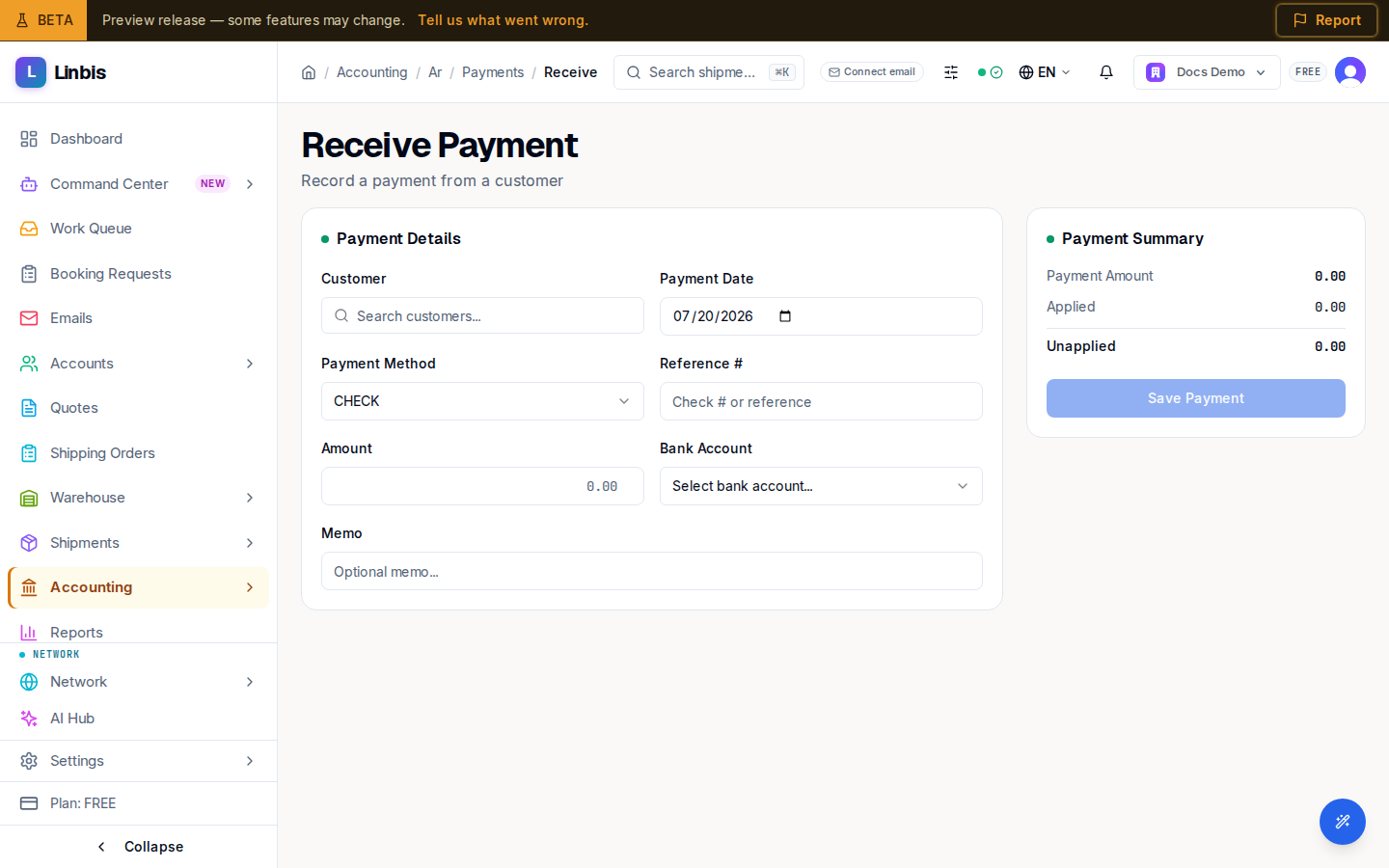
- Header: Receive Payment opens the payment form — Payment Details (Customer, Payment Date, Payment Method, Reference #, Amount, Bank Account, Memo), Invoice Allocations with Auto-apply (FIFO), and the Payment Summary. When a rate is involved, Before you save shows what the payment does in your company's currency. The full walkthrough is Record a payment against an invoice. Without an accounting role (Owner, Admin, Manager, or Finance) the button is greyed out with the reason.
- From an invoice: Receive payment on the invoice (or in its row menu on the Invoices list) opens the same form already filled in from that invoice, and saving takes you back to it.
- Row menu: View Details opens the payment; Void Payment opens it with its void dialog showing (not offered on a voided payment).
An Unapplied amount greater than zero means part of the payment is still sitting as credit — open the payment to allocate the remainder.
Related
Credit Memos (AR)
Customer credit memos — create credits, see where each line posts, correct a draft that cannot be posted, post it, and apply it against open invoices.
AR payment detail
The customer-payment detail page — allocations, and the Apply Credit, Mark NSF, and Void actions for handling credits and bounced payments.