Credit Memos (AR)
Customer credit memos — create credits, see where each line posts, correct a draft that cannot be posted, post it, and apply it against open invoices.
Accounting → Receivables → Credit Memos lists customer credits ("Manage customer credit memos and apply to invoices"). A credit memo reduces what a customer owes — for a billing error, a returned service, or a goodwill discount — and is applied against that customer's open invoices.
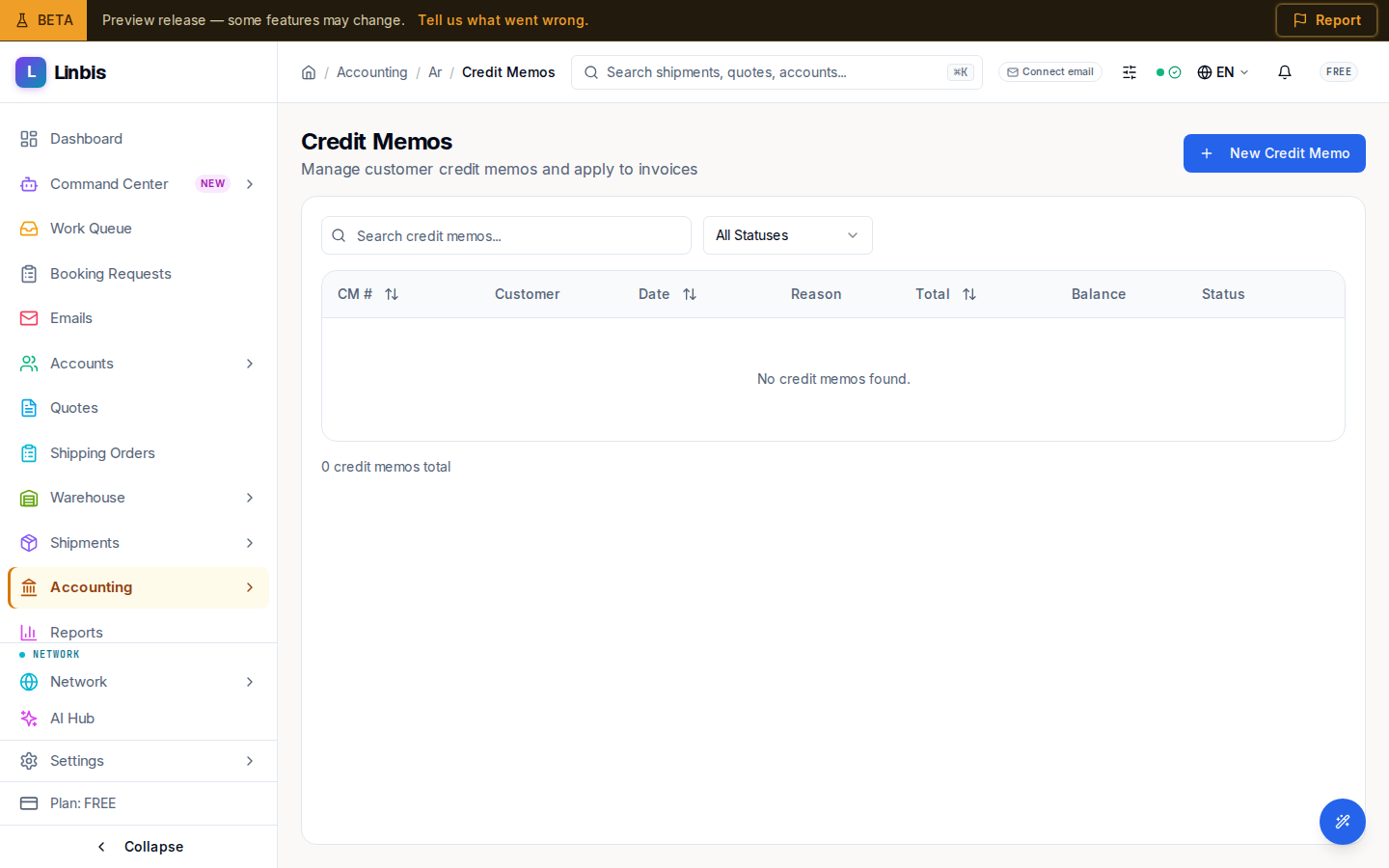
Columns
CM #, Customer, Date, Reason, Total, Balance (the unapplied remainder, highlighted while positive), Status. Search with "Search credit memos..." or filter by status.
Statuses
Draft → Posted → Partially Applied → Fully Applied, or Void.
Actions
- Header: New Credit Memo opens the create sheet. Each line has a Revenue account: leave "Charge code's revenue account" to use the one on the line's charge code, or choose another.
- Row menu: View Details (opens the credit), Edit draft (drafts), Post (drafts), Apply to Invoices (posted memos with balance — pick which open invoices absorb the credit), Delete (drafts), Void.
A posted credit memo does not touch any invoice until you apply it; the Balance column tracks how much credit is still unused.
Credit detail
View Details, or a credit's link on an invoice's Balance card, opens the credit: its Total, Applied, and Still to apply, the reason and the invoice it credits, and its lines with charge code, description, amount, and Posts to — the revenue account the post uses and where it comes from ("chosen on this line" or "the charge code's account"). A draft shows Edit draft and Post; a posted credit with something left shows Apply to Invoices.
Correcting a draft that cannot be posted
A line posts to the revenue account chosen on it, otherwise to its charge code's revenue account. Linbis does not fall back to a default revenue account. When a line has no usable account (for example its charge code has no revenue account), the detail says which line to fix ("Line 2 needs a usable account before this credit can be posted. Choose it with Edit draft: the draft keeps everything else.") and Post stays off. To fix it:
- Select Edit draft, in the detail or the row menu. The draft opens filled in.
- In that line's Revenue account, choose the account.
- Select Save draft, then Post.
If a post is refused anyway, the reason stays written in the credit's detail, not only in a passing message. If someone else changed or posted the draft after you opened it, your save is refused instead of overwriting their change.
Applying a credit
Apply to Invoices (row menu or detail), or Apply credit on an invoice's Balance card, opens the Apply sheet with the customer's open invoices in the credit's currency. Type how much goes on each and confirm with Apply credit; opened from an invoice, that invoice is already filled in at what the credit can cover. Each opening of the sheet applies the credit once: a double click or a retry does not apply it twice. If an earlier attempt from the same sheet already went through with other amounts, the sheet says so and reloads the documents so you can check what was applied.