Bank Accounts
The Bank & Treasury screen — manage bank accounts, import bank statements, see the import history, and connect feeds.
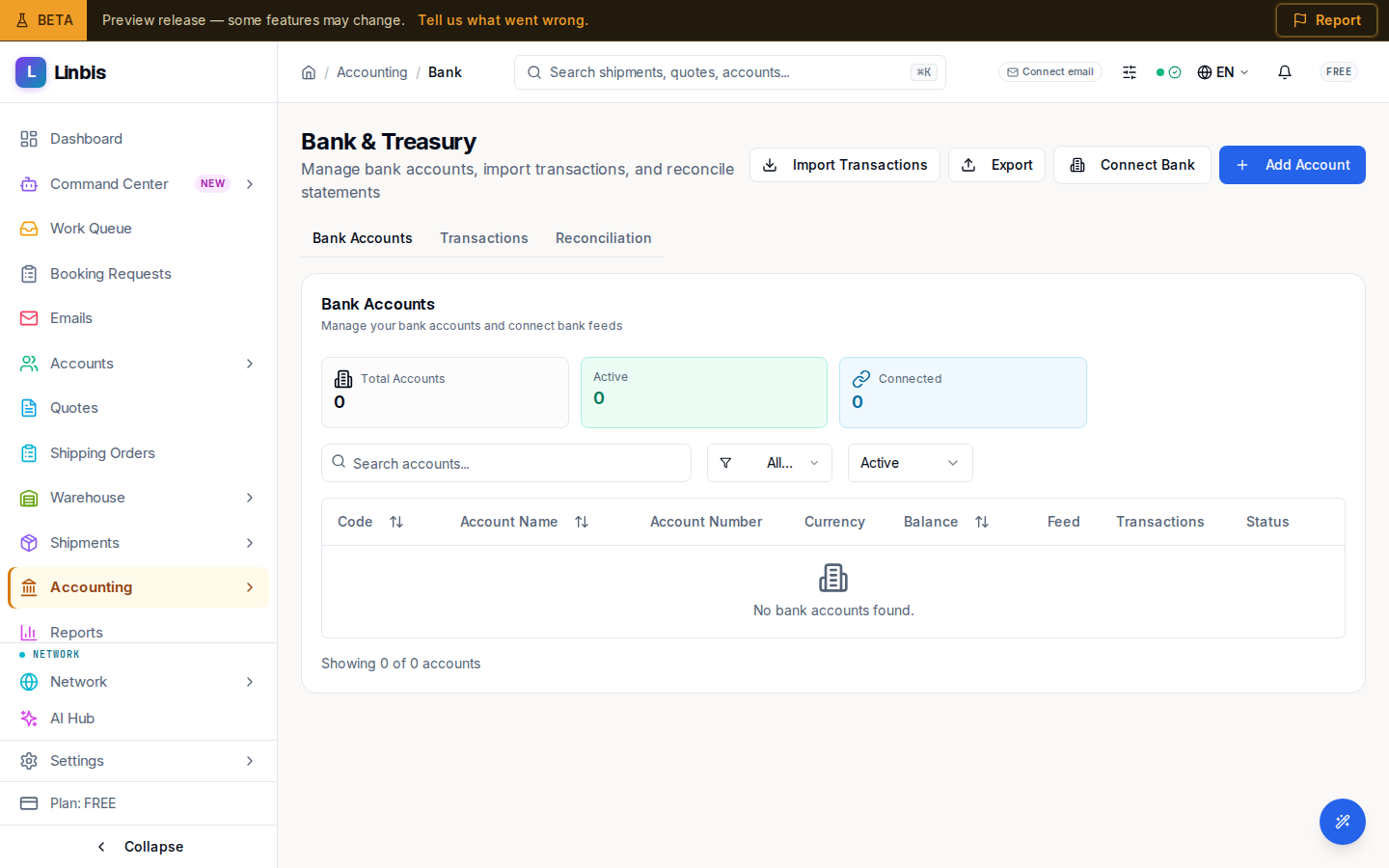
Accounting → Treasury → Bank Accounts opens the Bank & Treasury page ("Manage bank accounts, import transactions, and reconcile statements"). It has three tabs: Bank Accounts, Transactions, and Reconciliation.
Bank Accounts tab
The Bank Accounts card ("Manage your bank accounts and connect bank feeds") lists your accounts, under tiles for Total Accounts, Active, Connected, and the balance per currency. Columns: Code, Account Name, Account Number, Currency, Balance, Feed (the feed provider, or Manual), Transactions, and Status. Filter with "Search accounts...", by Currency (All Currencies or any currency your company uses), and by status (All Status, Active, Inactive; the list opens on Active). Row actions: Edit Account, Sync Transactions (only on an account with a connected feed, and only for admins — anyone else sees "Only admins can sync bank feeds."), and Deactivate (or Reactivate on an inactive account).
Header actions
Import Transactions opens the statement import described below. Connect Bank starts the Plaid connect flow and Add Account opens the account form. Export does not do anything yet.
Transactions and Reconciliation tabs
The Transactions tab ("View and match imported bank transactions") shows the import history of your statements, then Import CSV (it opens the same statement import as Import Transactions) and Connect Bank Feed. The lines themselves are reviewed, posted and matched on For Review.
Reconciliation is meant for matching a statement's ending balance against your books; its New Reconciliation button does not start anything yet.
Import a bank statement
Import Transactions and Import CSV open the same guided import, Import bank statement. It brings the lines of a statement in for review. Importing does not touch your books: the lines wait on For Review until someone chooses an account for a line and posts it.
Files it reads
- CSV and tab-separated files (.csv, .tsv, .txt), as online banking exports them.
- Excel workbooks (.xlsx) — the first sheet is read. An old .xls file is refused: save it as .xlsx or .csv and import that.
- OFX, QFX and QBO (QuickBooks Web Connect) files.
- CAMT.053 (ISO 20022, .xml). Only booked entries are read; pending ones are left out.
- MT940 (SWIFT, .sta or .940).
- PDF statements that contain text. On the preview, Dates are written says whether the statement writes its dates month first (MM/DD/YYYY, the default) or day first (DD/MM/YYYY); check the dates of the lines after choosing. Amounts are read as 1,234.56; for a statement that writes 1.234,56, use the bank's CSV, Excel, OFX, CAMT.053 or MT940 file. A scanned PDF (a picture of the pages, with no text in it) cannot be imported for now: download the statement in one of the other formats instead.
A file can be up to 8 MB and 5,000 lines. A file that holds the lines of more than one account (or currency) is refused: export each account's statement on its own and import it into its account.
Steps
-
Account — choose the Bank account the statement belongs to (only active accounts are offered), then tick the box confirming that the amounts in the file are in that account's currency. A statement in another currency belongs to a bank account in that currency. Select Continue.
-
File — drop the file or choose it. Linbis reads it and says what it found, for example "…, read as CSV". Select Continue.
-
Columns — only for CSV and Excel files (the other formats say what each value is). The first rows of the file are shown with Linbis's guess for each field. Check them:
- Date, Description, Comments / memo, Check number, and Reference — pick the column, or Not in this file.
- Where is the money? — One amount column, or Separate withdrawal and deposit columns (Withdrawals and Deposits). With one column, answer Which sign is a withdrawal? — Negative amounts are withdrawals (most bank exports) or Positive amounts are withdrawals (most card exports). When the amounts have no sign, choose the Debit / credit column that says which way each line went.
- Running balance — the bank's balance after each line. It is only used to check the lines and is never imported as an amount; a balance column is not offered as an amount column.
- Dates are written (MM/DD/YYYY, DD/MM/YYYY, or YYYY-MM-DD; a warning appears when the dates read both ways), Decimal separator (1,234.56 or 1.234,56), and Column names are on row (for files that print the account details above the column names).
At least the date, a description (or comments) and the money columns are needed. Select Preview with these columns.
-
Preview — see what the import will do before anything is saved:
- how many withdrawals and deposits the file has, and their totals;
- the balance check: whether the running balance agrees with every line, or whether the lines add up to the statement's opening and closing balances (or that the file has no balance to check against);
- every line with its row number and its status, New or Already imported (lines already in the account are skipped, and the preview counts them);
- Lines that cannot be read, each with its row and the reason (no date, not an amount, both a withdrawal and a deposit, and so on). Fix the columns, or tick the box to skip those lines and import the rest;
- anything that stops the import, in words (see below).
Select Import … lines; the count is the new lines only.
-
Done — Statement imported says how many lines came in, how many were skipped because they were already in the account, and how many could not be read, with the result of every row. Review the imported lines opens them on For Review; Import another file starts again.
What stops an import
- The same file was already imported into this account. It cannot be imported twice — to import it again (for example with other columns), first undo the earlier import.
- Every line of the file is already in the account, so there is nothing new to import.
- The file says its amounts are in another currency than the account's, or the account is closed.
- The file holds more than one account (or currency).
- An amount column is the running balance. The balance is never the amount: choose the column with each line's own amount.
- In a CSV or Excel file, the running balance does not follow from the lines — usually a wrong sign, column, or date order. Fix the columns; or, if you checked them and the lines are right, tick I checked the columns and the lines are right: import them although the running balance does not agree.
- A PDF is imported only when its lines add up to the statement's opening and closing balances (or, when it prints none, to its running balance). There is no override: export a CSV, Excel or OFX file from your bank instead. A scanned PDF is refused too.
For OFX, QFX, QBO, CAMT.053 and MT940 files the balance check is shown for your information and does not stop the import.
Duplicates
- The same file cannot be imported twice into the same account.
- A line an earlier import already brought into the account — from an overlapping statement or another file — is recognised, skipped and counted. Two identical lines on one statement (two equal card payments on the same day) stay two lines.
- Only lines from earlier imports are compared. Lines that came from a connected bank feed are not, so do not import a statement for days the feed already brought in.
Import history
Imported statements, on the Transactions tab, lists the latest imports (up to 20), newest first: File (with its format and Balances agree, Balances do not agree, or No balance to check), Bank account, Period, Lines (imported · skipped · unreadable), Withdrawals and Deposits (count and total), and Imported (the date). Each import has:
- View lines — opens that import's lines on For Review.
- Undo import — takes the whole import back, for example after a file was read with the wrong columns or sign. It works only while none of its lines is posted, matched, or reconciled: unpost or unmatch them first. After you confirm, its lines leave For Review and the same file can be imported again. The books do not change, because nothing from the import was posted.
Who can import
Importing a statement, undoing an import, and choosing accounts for and posting lines on For Review need the Owner, Admin, Manager, or Finance role. For anyone else, Import Transactions, Import CSV and Undo import are shown disabled, and the Bank page says why: "Importing statements and posting bank lines needs the Owner, Admin, Manager or Finance role. Ask an administrator." They can still see the history.